
Table of Contents
Nous Research has added a live remote desktop view to Hermes Desktop, giving users a way to watch Hermes agents operate on remote Linux machines and temporarily take control when a task requires human input.
The feature, called Bot Screen, streams the desktop that a Hermes bot is using on a headless Linux gateway, including servers, cloud virtual machines, and Hermes Cloud environments. It allows an operator to observe an agent as it drives a browser, types into a terminal, or opens windows, then take over the keyboard and mouse for logins, two-factor authentication, CAPTCHAs, payment steps, or other actions that should not be handled autonomously.
Bot Screen walkthrough
Teknium, cofounder and lead engineer for Hermes Agent at Nous Research, announced the update on X, saying users can now access the same machine their Hermes agent uses "visually and interactively" through live desktop passthrough. Nous Research described the launch as a way to "watch your agents work live" and hand control back when the human step is complete.
The release is an addition to Hermes Desktop, Nous Research's native app for working with the same Hermes Agent core available through the command-line interface and gateway. Instead of treating remote computer use as a black box, Bot Screen gives users a shared work surface for supervising what the agent is doing.
How Bot Screen Works
Bot Screen is designed around remote Linux gateway hosts. On a supported headless machine, each Hermes profile, or bot, receives its own Xfce desktop. The agent's computer_use tools and headed browser act on that desktop, and Hermes Desktop streams it live to the user.
The screen lives on the gateway host, not on the user's laptop, so closing Hermes Desktop or turning off a local machine does not stop the bot. The remote desktop continues running on the gateway, so the agent's work environment persists across sessions.
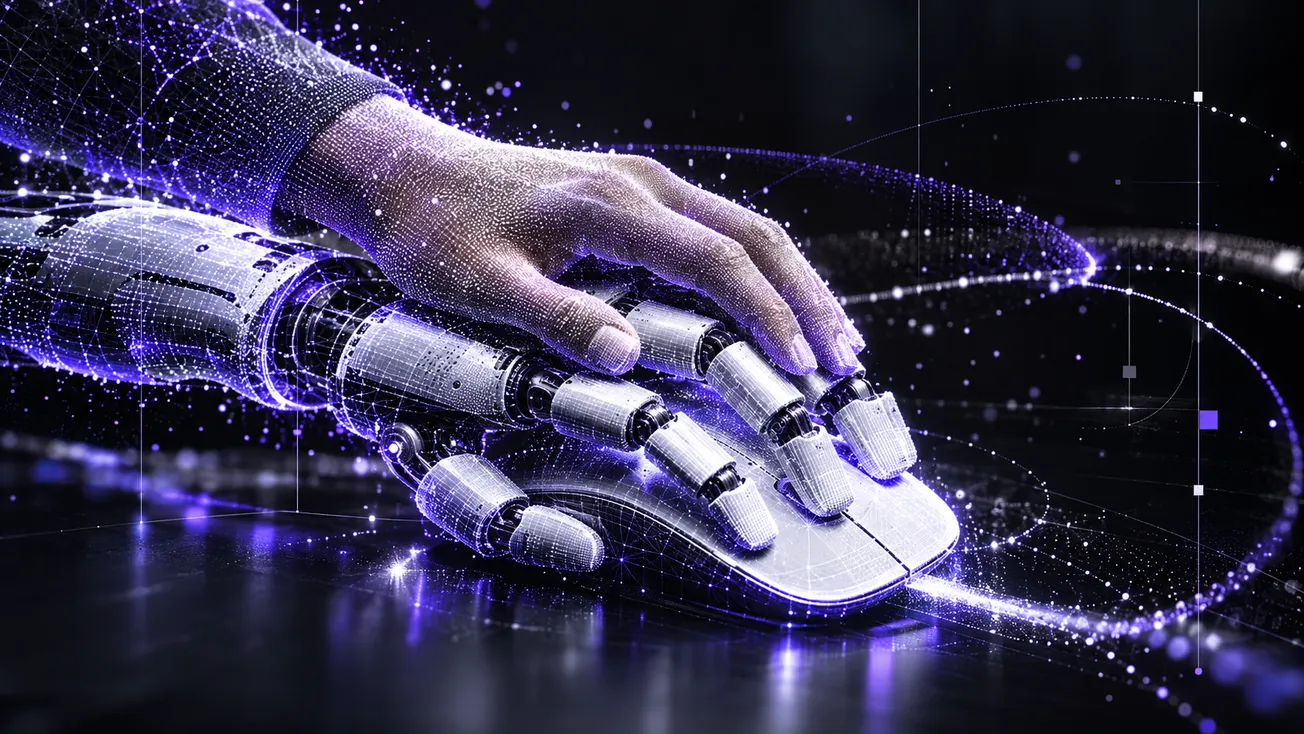
When a user opens a Bot Screen pane, Hermes shows who currently has control. By default, the bot controls the screen. If a human clicks "Take over," the pane switches to human control and the operator's keyboard and mouse drive the bot's desktop. After completing the sensitive step, the user can click "Hand back" and the bot regains access.
Nous says the handoff is enforced at the tool level. While a human holds control, the bot's computer_use and browser tools are refused with a human_has_control result, preventing the agent from interrupting an active login or authentication flow. If a Wi-Fi connection drops while a human is in control, the lease remains in place so the bot does not unexpectedly resume in the middle of the human-operated step.
Browser state also survives the handoff. The dock's Browser icon and the bot's browser tool use the same Chromium profile for each bot, stored under that bot's Hermes home directory. That means cookies and logins completed by a human during takeover are available to the agent afterward, until the site itself expires the session.
Why Human Takeover Matters for Agent Workflows
Bot Screen addresses a recurring problem in computer-use agents, where many valuable workflows require moments of human authorization.
An agent may be able to browse a dashboard, prepare a form, operate a terminal, or navigate a web app, but it should not independently solve every identity, credential, payment, or security challenge. Logins, two-factor prompts, CAPTCHAs, and payments often represent boundaries where human approval is necessary for safety, policy, or account-control reasons.
Without a live shared screen, those moments can break a run. The user may need to reconstruct what the agent was doing, complete the step separately, or restart the task with new instructions. Bot Screen turns that interruption into a handoff: the agent reaches a blocked point, the human takes control on the same remote machine, completes the step, and returns the active session to the bot.
This makes remote computer use easier for open-source agent users to inspect and supervise, especially on Hermes Cloud and other gateway-based deployments where the agent may be operating on a machine the user is not physically viewing. Instead of relying only on tool logs or summaries, operators can watch the actual desktop environment where the agent is working.
It also gives developers and power users a clearer debugging surface. If an agent is misclicking, hitting a browser state it cannot interpret, or failing inside a terminal workflow, the user can see the same environment and intervene without shutting down the run.
Linux Gateway Requirements and Security Scope
The first version of Bot Screen is limited to Linux gateway hosts. Nous says macOS and Windows hosts already have real displays, so the Bot Screen pane is not offered there. Supported Linux environments need TigerVNC's Xvnc, Xfce components, and Hermes computer-use support through cua-driver.
Nous estimates that an open screen with a headed browser typically needs about 1.1 GB to 1.5 GB of free memory. The desktop itself is relatively light, while Chromium accounts for much of the additional memory cost. Hermes can also stop an idle screen after a configurable period, with a default of 30 minutes.
The streaming path uses TigerVNC's RFB protocol over a Unix socket and Hermes Desktop's bundled noVNC through an authenticated WebSocket. The feature works across local, SSH, URL-and-token, and Hermes Cloud connections. Hermes also exposes command-line controls for the screen through hermes computer-use screen status, start, stop, and install.
You can think of Bot Screen as a work surface rather than a strict isolation boundary between bots. Multiple bots on the same host share the host's user account, files, and network access unless they are separated at the host level. The human-control lease gates Hermes tools, but it is not an operating-system security boundary.
That means users should treat the screen as a supervised agent interface, not as a sandbox for secrets they would not otherwise trust the bot's environment to access.